Virtual Staging With ChatGPT, Gemini or Canva: What Breaks
AI Flip Room · 6 min read
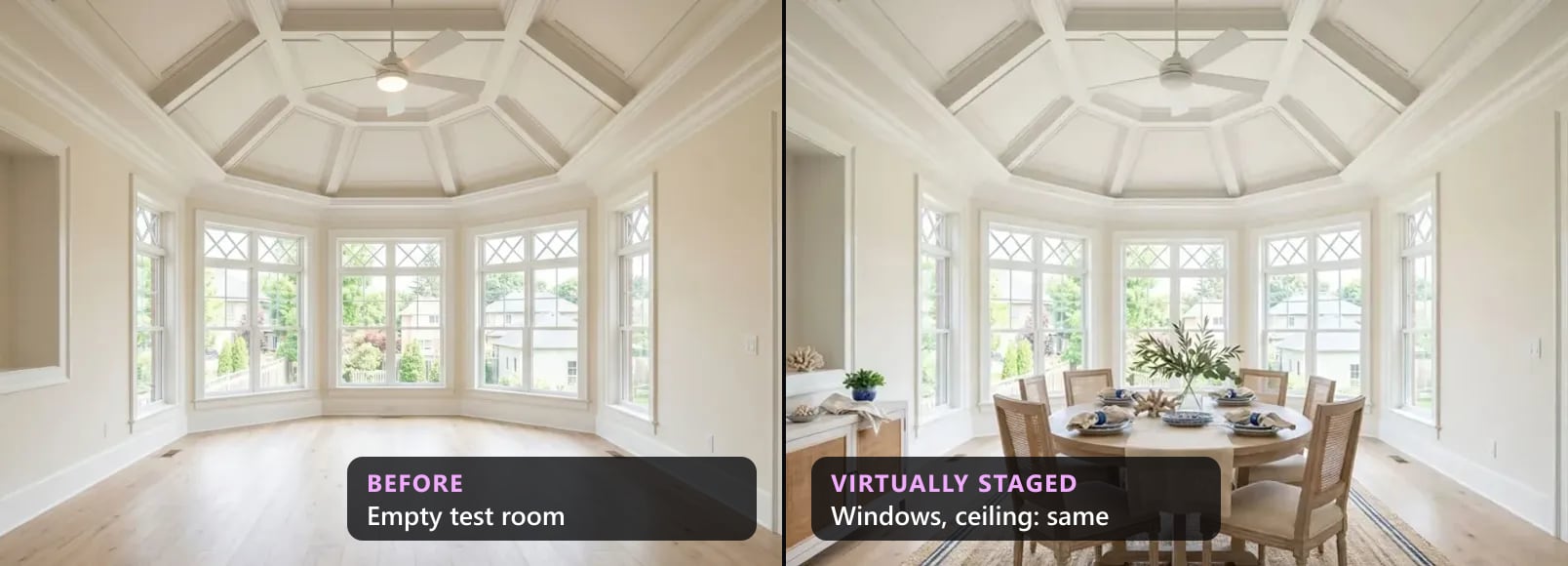
Videos and roundups keep asking the same question: why pay for a virtual staging tool when ChatGPT, Gemini or Canva can put a sofa in a photo? It's a fair question. Sometimes a general AI tool is all you need. Sometimes it's the quickest way to publish a photo of a room that doesn't exist.
We make an AI virtual staging tool, so read this with that in mind. We haven't run a test of these three tools, and nothing here is a review of them. This is about what to check, whichever tool made the picture.
What a general AI tool does with your photo
You upload a photo and describe what you want. Depending on the tool, it redraws the whole picture from your photo and your words, or it repaints an area you brush over. Either way, its job is to give you the picture you asked for.
It doesn't know which parts of the room a buyer is paying for. It doesn't know that your MLS cares whether the window is the same size, or that a lamp suggests an outlet. That isn't a flaw. It's a different job.
The model isn't the secret, either. Our own tool runs on general-purpose image models too. What makes a staged photo safe for a listing is what happens around the model: who compares the result with the original, what happens when it fails, and how the photo gets labelled.
When a general tool is enough
- Ideas for yourself. A mood board, a colour you're thinking about, three styles to choose between.
- A conversation with a seller. A picture of what the empty living room could look like, before anyone pays for furniture or photos.
- Social posts labelled as ideas. "An idea for this room" is honest. "This home" is not, if the picture shows a different room.
- A renovation concept. A new floor or a new kitchen, shown as a concept and clearly labelled, never as a listing photo of the home as it is.
In all four, nobody makes a decision about this house based on the picture. That's what makes them low-risk.
When it's risky: the listing photo
A listing photo is a promise about a real room. Every rulebook we have read draws the same line: furnish what moves, never alter the property. Windows, doors, floors, ceilings and openings are the property. Our table of MLS rules by state and province shows where each rulebook puts the line and the label.
Here is what to watch for when any AI tool redraws a room.
Windows. A window gets wider, gains a narrow twin, appears on a blank wall, or shows a different view. In 300 renders we counted on our own tool, windows were the most common problem: 22 of 34 drafts with notes. With a general tool, that check is yours, so look at the windows first.
Openings and doors. An archway closes into a flat wall. A closet door changes kind, or disappears behind a print. In the same data, 13 of 34 drafts lost or changed an opening and 7 changed a door. These are the hardest to spot, because the result looks like a perfectly normal room.
Floors, walls and fixtures. Ask for a sofa and you may also get a new floor, new paint or a new ceiling light. Some MLS guidance counts new paint and new light fixtures as virtual renovation, not staging. ITSO's does, as our article on the CBC story explains.
The frame. The picture can come back at a different size or shape, cropped or widened. A room that suddenly looks deeper means the camera moved, and the room now looks bigger than it is.
Clutter and extras. Plants on the windowsill, a lamp in a corner with no outlet, a fireplace that wasn't there, a nicer view. Each one reads as a feature of the home.
Scale. A general tool doesn't know the room is eleven feet wide. If the furniture couldn't fit in real life, take it out of the photo. Buyers find out at the showing.
The label. Adding "Virtually staged" is up to you, and a general tool won't know whether your MLS wants it on the photo, in the remarks, or both. The disclosure wording tool gives you the words for your MLS and the rule they come from. Keep the original of every staged photo, too: a careful buyer can ask to see it.
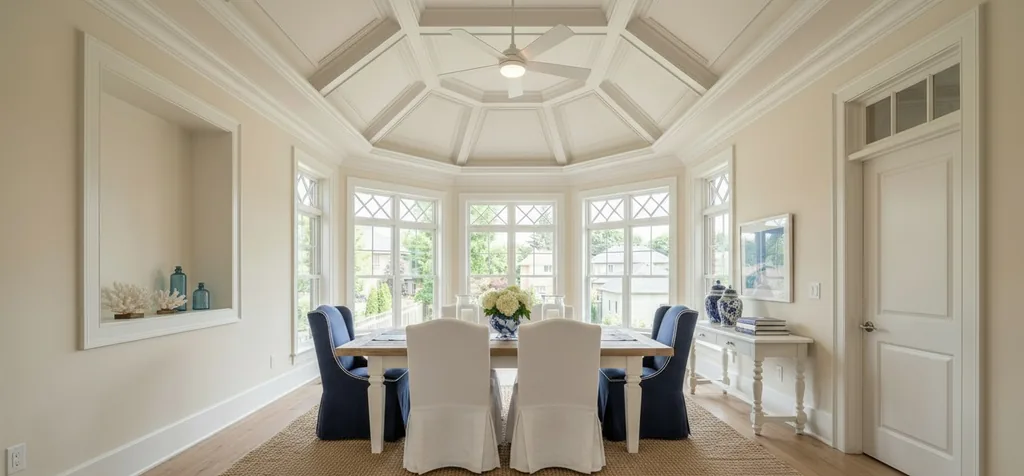
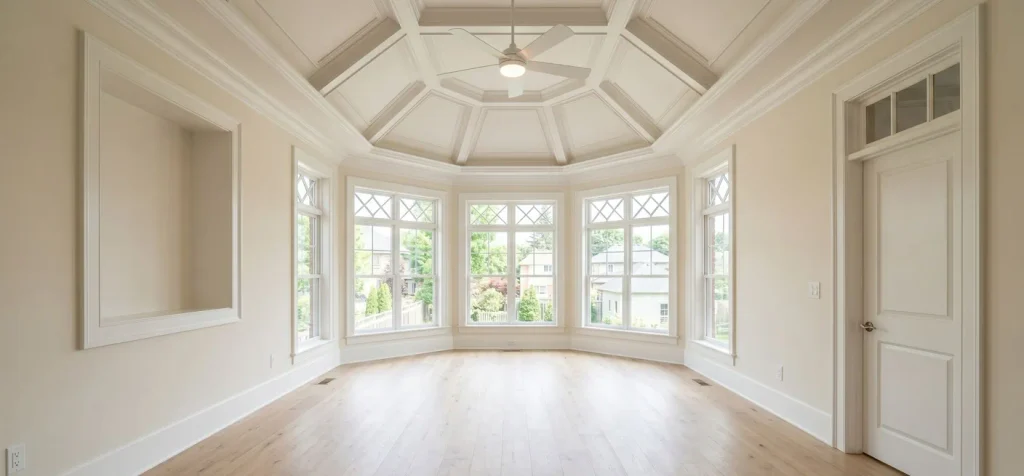
Check by eye before it goes on a listing
Before a staged photo goes in a listing
- 1Count the windowsSame number, same size, same place, same view outside. In our own render log, this was the most common problem.
- 2Walk every openingEvery archway and doorway still open and still leading where it led. A closed-off arch looks like a normal wall, so compare it with the original.
- 3Find every doorStill there, still the same kind, nothing hung across it or pushed against it.
- 4Look down, then upThe same floor, not a new one. The same ceiling: no new beams, tray or recess, and the same light fixtures.
- 5Check the frameSame size and shape as your photo. If the room looks deeper or wider, or more of a side wall shows, the camera moved.
- 6Check the scaleLeave a clear path from the door. A room that fits a loveseat doesn't get a sectional.
- 7Remove what promises a featureNo lamp without an outlet, no fireplace, no better view. Then label the photo and keep the original.
Put the original and the staged version side by side, ignore the furniture, and look at the parts of the room that will still be there when the buyer walks in.
If you use a general tool anyway
You can. Do it the careful way:
- Start from the photo you'll list. Wide, level, in daylight. Our photo guide shows how.
- Ask for furniture and decor only. Name what must stay: windows, doors, floor, walls, ceiling, light fixtures, the view and the camera. It helps. It doesn't guarantee anything.
- Compare every result with the original, using the list above.
- Throw away a bad one. Start again from the original rather than asking the tool to fix its own edit; each new edit is another chance to change the room.
- Label it and keep the original.
Where a staging tool differs, and where it doesn't
Here is what ours does. Every point is something you can check on the site.
- A geometry check against your original. Every render, free or paid, is checked against your photo for moved or missing windows and doorways before you see it. If it fails, the engine tries again. If nothing passes, you get the best attempt, marked as a draft. Since 27 September, 11.9% of renders came back as drafts.
- A "Virtually Staged" label on the photo. Free renders always carry it. On paid renders it's on by default, with a switch, and there's an unbranded version for MLSs that ban logos.
- MLS mode. A switch for interior styles, off by default, that tells the engine to change furniture and decor only and keep walls, floors and light fixtures.
- The rules, written down. Free rule guides and the disclosure wording tool.
And here is what it doesn't do: promise a perfect render. Our checker misses some camera moves, raises some false alarms, and doesn't flag a full repaint or a new light fixture. So the check-by-eye list applies to our renders too.
See it, price it, try it
Before and after pairs we compared with the original by eye: dining rooms and living rooms. If you're deciding whether an empty listing needs staging at all, the staging cost calculator puts a number on each day it sits on the market. And if you'd like to try a tool built for listing photos, three free renders need no credit card.
Questions about staging with general AI tools
Can I use ChatGPT for virtual staging?+
For ideas, yes. For a listing photo, only after you have compared it with the original, room feature by room feature, and labelled it the way your MLS asks. The tool you use doesn't change the rules; the result is what gets judged. Our MLS rules by state and province show what each rulebook asks for.
Is a photo staged with Gemini or Canva allowed on the MLS?+
The rules don't name tools. They ask that the image doesn't misrepresent the property, and many ask for a label. A sofa in an empty room is staging. A changed window or a new floor is a different house, and a label doesn't fix that.
Why did the window or the floor change when I only asked for furniture?+
A tool that redraws the picture can redraw anything in it, not only the part you asked about. Ask again from the original photo, not from the edited one, and name what must stay: windows, doors, floor, walls, ceiling, light fixtures and the camera. It helps; it doesn't guarantee anything, so check the result again.
Do I have to label a photo staged with a free AI tool?+
The same as any staged photo: check your MLS. Whatever marks a tool adds to the file, the disclosure your MLS asks for is one buyers can read, on the photo or in the listing. The disclosure wording tool gives you the words and where they go.
Is a staging tool's AI better than a general one?+
Not by itself. Our own tool runs on general-purpose image models too. The difference is what happens around the model: a check against your original, another try when the check fails, a draft mark when nothing passes, and a label on the photo.
ChatGPT, Gemini and Canva are trademarks of their owners. We're not affiliated with them, and this article describes risks to check, not results of a test. Our numbers come from our own render log, 1 August to 21 October 2026. This is not legal advice: ask your brokerage and your board before you rely on anyone's reading of the rules, including ours.
See it on your own room
Upload a photo and watch AI restage your space in 15–60 seconds, depending on how much detail it has — free to try, no credit card.
Try AI Flip Room freeGot a question about this?
Something unclear or not covered? Ask here. We read every question and answer the useful ones right in the article. Nothing you write is published.
Related reading
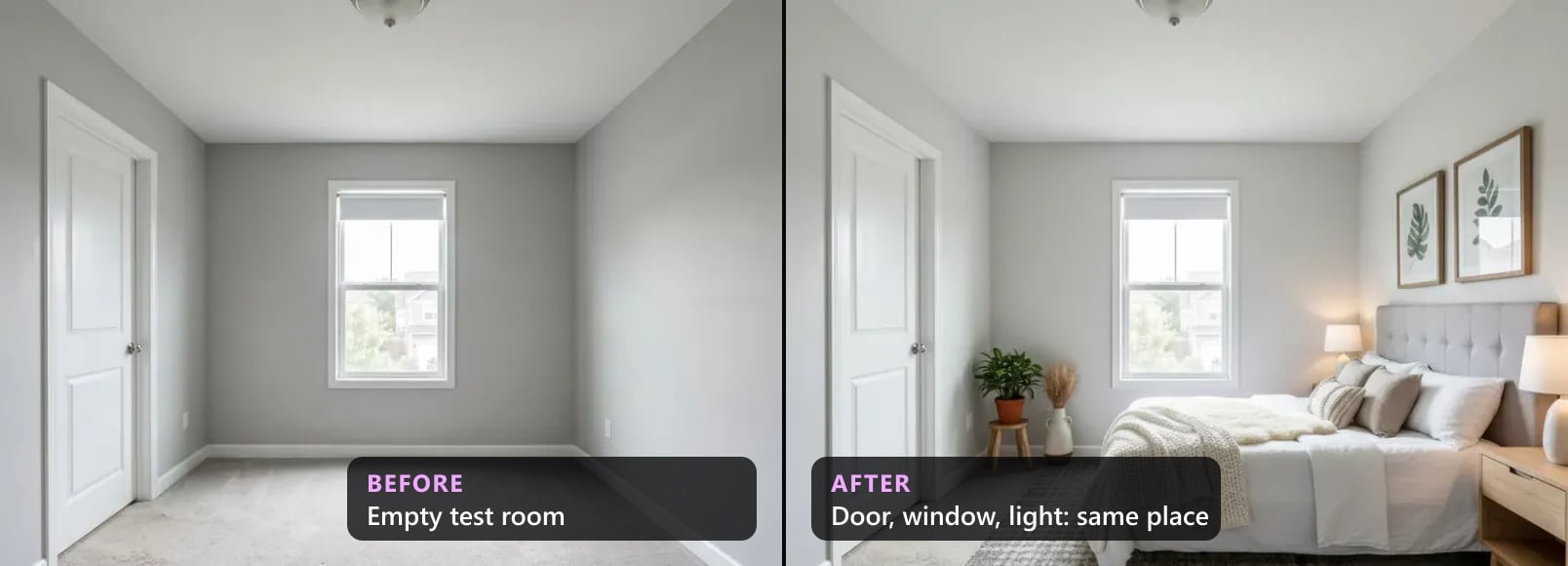
We Checked 300 AI-Staged Renders: What Breaks (2026)
Our quality checker's data on 300 AI-staged renders, Aug–Oct 2026: how many failed, what broke most (windows, archways, doors), what to check by eye.

MLS Virtual Staging Rules by State and Province (2026)
MLS virtual staging rules for sixteen jurisdictions in one 2026 table: who sets the rule, whether a label is required, and whether the original goes beside it.
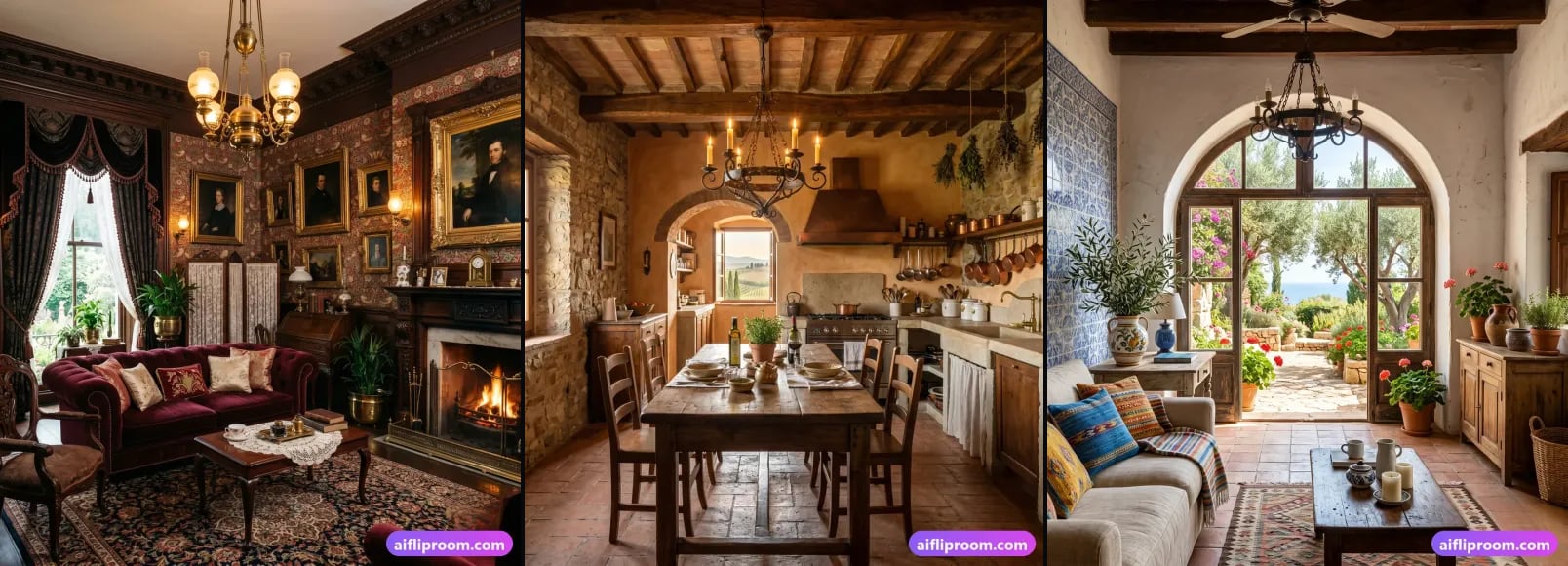
Virtual Staging Disclosure Rules: How to Label Staged Photos
Why disclosure is required, three ways to label a virtually staged photo, what you may change vs never touch, and the rules of sixteen jurisdictions compared.